This is the big one. I MUST be able to sync my calendar to my phone to make this whole thing viable. I said before that I have an "in" with the development team that works on EasySync Pro, so I've sent them an email. It's really a very minor "in", and I don't expect more than a "Yes, we have/are working on a Linux solution" or "Sorry, but Linux is not supported" answer from them. I'm keeping my fingers crossed.
Updates to follow.
Update:
There is no EasySncy for Linux, which is what I expected. However, there is something called Notes Traveler, which we have, so I'm going to give that a try.
Friday, August 22, 2008


Firefox Upgrade and Thunderbird Install
As mentioned in my first post, I need to upgrade Firefox. My company's image includes 2, and I want 3.
I also use Thunderbird for my personal email, so I need to get that installed as well. I started there, actually, and got Firefox installed out of that.
I did a Google search, and found a website on installing Thunderbird. Their instructions helped me through the process greatly, and I got the Bird installed no problem.
Now, I need to move my profile stuff over. So, back to my Windows partition (which I plan on mounting as a VM some time soon), and I zip up my profile directory there. Now, I'm off to unzip it to my home directory.....
They're extracting now. Keep your fingers crossed. By the way, I did make a backup of my profile directory in my Linux partition before hand, just in case.
And it worked! All my email is there (IMAP through Google for domains). All my RSS feeds are there. WOOT! (Oh, they're one of my RSS feeds.)
So, now on to Firefox, right? Well, turns out the directions that worked for Thunderbird also worked for Firefox. Just a little tweaking to get the directories right, and I'm up and running Firefox 3. One small problem, however, was the Flash plug in. Firefox 3 said I didn't have it.
I downloaded it, and tried to install it, but was told that I had a newer version already installed. So, I went to my Firefox 2 install directory (/usr/lib/firefox-2.0.0.14), and copied the contents of the plugins directory to my Firefox 3 install directory, and then restarted Firefox 3. That worked like a charm.
I still need to update my icons in my menus to start 3, and not two, but other than that, I think I'm golden.
Update:
One thing I relied on under Windows on Thuderbird was the new email icon in the system tray. Didn't see it in my Linux one. Some searching had me come across a plugin that does it. Installed it, and it worked fine. I couldn't install it via Firefox. I had to download it and install it directly from Thunderbird. Maybe that's normal, and I just don't know.
Update:
I fixed the menu entries. I wish I could remember how I did that, but it wasn't hard. Sorry I can't detail what I did, or provide a link to what I did.
Update:
I had a little pet peeve with the backspace key not taking me back in history in Firefox. I fixed that with the help of this article. Yes, it is for Firefox 2, but it worked for Firefox 3 just fine for me.
Only thing left now is to migrate my favorites, but I'm in the midst of a WIndows Free Weekend, so I can't get to them to export them.
I also use Thunderbird for my personal email, so I need to get that installed as well. I started there, actually, and got Firefox installed out of that.
I did a Google search, and found a website on installing Thunderbird. Their instructions helped me through the process greatly, and I got the Bird installed no problem.
Now, I need to move my profile stuff over. So, back to my Windows partition (which I plan on mounting as a VM some time soon), and I zip up my profile directory there. Now, I'm off to unzip it to my home directory.....
They're extracting now. Keep your fingers crossed. By the way, I did make a backup of my profile directory in my Linux partition before hand, just in case.
And it worked! All my email is there (IMAP through Google for domains). All my RSS feeds are there. WOOT! (Oh, they're one of my RSS feeds.)
So, now on to Firefox, right? Well, turns out the directions that worked for Thunderbird also worked for Firefox. Just a little tweaking to get the directories right, and I'm up and running Firefox 3. One small problem, however, was the Flash plug in. Firefox 3 said I didn't have it.
I downloaded it, and tried to install it, but was told that I had a newer version already installed. So, I went to my Firefox 2 install directory (/usr/lib/firefox-2.0.0.14), and copied the contents of the plugins directory to my Firefox 3 install directory, and then restarted Firefox 3. That worked like a charm.
I still need to update my icons in my menus to start 3, and not two, but other than that, I think I'm golden.
Update:
One thing I relied on under Windows on Thuderbird was the new email icon in the system tray. Didn't see it in my Linux one. Some searching had me come across a plugin that does it. Installed it, and it worked fine. I couldn't install it via Firefox. I had to download it and install it directly from Thunderbird. Maybe that's normal, and I just don't know.
Update:
I fixed the menu entries. I wish I could remember how I did that, but it wasn't hard. Sorry I can't detail what I did, or provide a link to what I did.
Update:
I had a little pet peeve with the backspace key not taking me back in history in Firefox. I fixed that with the help of this article. Yes, it is for Firefox 2, but it worked for Firefox 3 just fine for me.
Only thing left now is to migrate my favorites, but I'm in the midst of a WIndows Free Weekend, so I can't get to them to export them.
Thursday, August 21, 2008
Screenshots - Closed
Well, that was a lesson learned. As you can see, I added screenshots to my last post. The process was not pleasant. I had to go to the Red Hat menu > Accessories > Take Screenshot, then go to GIMP to open it up, select the area I wanted taken, crop and save.
In Windows if you do Alt-PrintScr, it will just take a screenshot of the active window. I'd love something like that, but I expect to have to download a utility that will allow me to better handle screenshots. There have to be a ton of them out there, so I'm off to sourceforge.net to take a look for one.
As always, I'll update this post with more info on what I find, how I install it, and how it works...
If you know of one, please feel free to add a comment and let me know.
UPDATE: Thanks to the folks who commented on this post. I tried them both, but the keymapping updating worked better for me. Interesting thing is that when I looked at the mapping for screenshot of a window, it saidPrint. I tried to remap it to Print, and it ended up mapped to Sys_Rq. It works like that, but whatever.
Lesson Learned: I have a bit to learn about Linux, I guess. Didn't know about the keyboard mappings. Also, if the one you expect doesn't work, remap it. Could be a keyboard issue.
In Windows if you do Alt-PrintScr, it will just take a screenshot of the active window. I'd love something like that, but I expect to have to download a utility that will allow me to better handle screenshots. There have to be a ton of them out there, so I'm off to sourceforge.net to take a look for one.
As always, I'll update this post with more info on what I find, how I install it, and how it works...
If you know of one, please feel free to add a comment and let me know.
UPDATE: Thanks to the folks who commented on this post. I tried them both, but the keymapping updating worked better for me. Interesting thing is that when I looked at the mapping for screenshot of a window, it said
Lesson Learned: I have a bit to learn about Linux, I guess. Didn't know about the keyboard mappings. Also, if the one you expect doesn't work, remap it. Could be a keyboard issue.
Printing
I didn't even have this on my list of stuff to do from my first post, but printing seems kind of important, so I'll start there.
My home printer is an HP DeskJet 960c, which I have connected to a network print server. So, I have to go through the process of adding a printer. I looked up what it will take to download and install the driver by going to hp.com. Turns out that Red Hat doesn't have an automatic installer. It's pretty much a build from source thing.
So, I'm going to just try to install the printer and see what happens.
Nothing. No printing. On further review, the support site for this driver says that network printing is not supported. Maybe that's why it's not printing.
I'm going to have to do some research and then come back to this later. I'll update this post when I do.
UPDATE!
Well, I played some more, and instead of using the IPP protocol, I tried AppSocket/HP Jetdirect, entered my IP, accepted the default port, and tested it. IT WORKED!
Lesson Learned: When using a network print server connected directly to your printers parallel port, try AppSocket/HP JetDirect.
BTW: I'm not "closing" this post until I get to try it from outside the home. I have everything setup to do it, and I can do it from Windows. I just want to add another printer with the right address and port, then try it from the road. Probably not a big deal....
My home printer is an HP DeskJet 960c, which I have connected to a network print server. So, I have to go through the process of adding a printer. I looked up what it will take to download and install the driver by going to hp.com. Turns out that Red Hat doesn't have an automatic installer. It's pretty much a build from source thing.
So, I'm going to just try to install the printer and see what happens.
- Click on my Red Hat menu, select System > Preferences > More Preferences > Control Center
- Under Administration, double click on Printing
- Click on New Printer
- In the dialog that comes up, enter a name, a description and a location, then click on Forward:
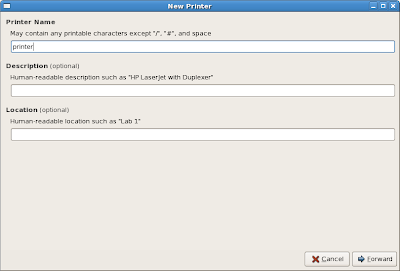
- Next, on the dialog that comes up, select Internet Printing Protocol (ipp), and enter the IP address of the printer, then click Forward:

- Of course, since I'm going to be installing an HP printer, I pick HP from the next dialog and click Forward.
- On the next dialog, I select the printer, and then leave the recommended driver, and then click on Forward:
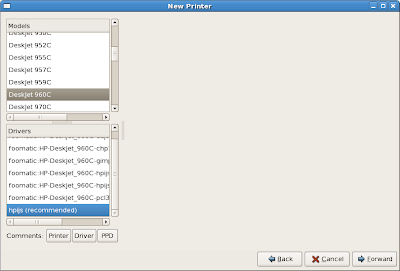
- The system tells me it's going to create a printer, so I click Apply.


Nothing. No printing. On further review, the support site for this driver says that network printing is not supported. Maybe that's why it's not printing.
I'm going to have to do some research and then come back to this later. I'll update this post when I do.
UPDATE!
Well, I played some more, and instead of using the IPP protocol, I tried AppSocket/HP Jetdirect, entered my IP, accepted the default port, and tested it. IT WORKED!
Lesson Learned: When using a network print server connected directly to your printers parallel port, try AppSocket/HP JetDirect.
BTW: I'm not "closing" this post until I get to try it from outside the home. I have everything setup to do it, and I can do it from Windows. I just want to add another printer with the right address and port, then try it from the road. Probably not a big deal....
First Post
So, I'm going to try (again) to make the switch to Linux. I'm starting this blog for two reasons. First, everyone seems to be doing it these days, and I want to see what it's all about. Second, I want a place where I can document the issues I've run into, and what I did to get around them. Who knows, maybe I'll get some good feedback that will help. Maybe having this up will help other people. Maybe no one will read it. We'll have to see.
A little about me
My name is Rick Seiden. I live in Western New York. I'm 39 years old. I work for a huge company as a computer consultant. I'm a geek. Tried and true. I love all the classic geek things--well almost all.
About my computer
You can't talk about installing Linux on a computer without knowing what is inside the computer, so here's what I'm working with:
IBM/Lenovo ThinkPad T60 Model 1951-BS7.
It's my company supplied laptop, and my primary workstation. I do everything on here, including writing this blog (oooo...exciting!).
About my distro
Linux, of course, comes in many different flavors, called Distributions. Choosing one can be a very difficult task, and depends on many, many factors. If I had a desktop at home I was doing this for, I would have to go with Ubuntu or Kubuntu (I like KDE better than Gnome for some reason...). I like it because it's simple to install, and offers a fairly simple desktop to work with. This is, however, my work machine I'm going to be doing this to. That means I need 100% compatibility with all my work stuff.
Luckily, the company I work for has a standard install of Linux. I can choose between running Windows XP Pro, or our branded version of Red Hat Linux Enterprise Desktop 4. It's Red Hat with a few changes to brand it, and a bunch of programs pre-installed---our VPN client, our email client, stuff like that.
Since I hope to be using this full time, I don't really have a choice. I need to be able to do my work on it, which means I need to be using my work supplied version of Linux.
That means, for a lot of stuff, my computer will just work. I don't have to worry about getting wireless networking or sound working. They just work. I don't have to worry about getting the right resolution on my video card. It just works. That's a plus.
Some things, however, don't work. For instance, the middle button on the track point doesn't scroll like it does in Windows. I'll have to fix that. None of my function keys (the Fn key on the keyboard) work. I'll have to work on that. And the list goes on.
Make it work or live with it
I know that I won't be able to get everything to work. I'll have to live with some things not working. That's the cost of going to Linux in my opinion. Hopefully it won't be enough to stop me from making the switch, but who knows, maybe it will.
Things I know I'll face, and how severe they'll be:
My Plans
What I plan for this blog is probably a little untraditional. Most blogs will have one entry per day or session or whatever. I'm going to have one entry per issue, and update that entry as I make progress. So, for instance, I'm going to have a post on upgrading Firefox, and another on installing Thuderbird, and so on. I'm hoping this will work.
The End
I had a friend that like to say that to end a conversation. It's appropriate here, I think. This is the end of this post. I'm going to publish it now. Feel free to comment.
A little about me
My name is Rick Seiden. I live in Western New York. I'm 39 years old. I work for a huge company as a computer consultant. I'm a geek. Tried and true. I love all the classic geek things--well almost all.
About my computer
You can't talk about installing Linux on a computer without knowing what is inside the computer, so here's what I'm working with:
IBM/Lenovo ThinkPad T60 Model 1951-BS7.
It's my company supplied laptop, and my primary workstation. I do everything on here, including writing this blog (oooo...exciting!).
About my distro
Linux, of course, comes in many different flavors, called Distributions. Choosing one can be a very difficult task, and depends on many, many factors. If I had a desktop at home I was doing this for, I would have to go with Ubuntu or Kubuntu (I like KDE better than Gnome for some reason...). I like it because it's simple to install, and offers a fairly simple desktop to work with. This is, however, my work machine I'm going to be doing this to. That means I need 100% compatibility with all my work stuff.
Luckily, the company I work for has a standard install of Linux. I can choose between running Windows XP Pro, or our branded version of Red Hat Linux Enterprise Desktop 4. It's Red Hat with a few changes to brand it, and a bunch of programs pre-installed---our VPN client, our email client, stuff like that.
Since I hope to be using this full time, I don't really have a choice. I need to be able to do my work on it, which means I need to be using my work supplied version of Linux.
That means, for a lot of stuff, my computer will just work. I don't have to worry about getting wireless networking or sound working. They just work. I don't have to worry about getting the right resolution on my video card. It just works. That's a plus.
Some things, however, don't work. For instance, the middle button on the track point doesn't scroll like it does in Windows. I'll have to fix that. None of my function keys (the Fn key on the keyboard) work. I'll have to work on that. And the list goes on.
Make it work or live with it
I know that I won't be able to get everything to work. I'll have to live with some things not working. That's the cost of going to Linux in my opinion. Hopefully it won't be enough to stop me from making the switch, but who knows, maybe it will.
Things I know I'll face, and how severe they'll be:
- The track point must scroll: Pretty severe, as I'm used to it, and use it all the time. I might be able to live without it.
- Email and RSS: I need to port these over from Windows. It won't be too difficult, as I'm already using Thunderbird there, and I'm sure I can just export and import.
- Sharing Data: Until I finish the leap for good, I need to be able to share data between the OSs. This means a FAT32 partition that stores my data. I recently ordered a new hard drive, and that's where I'm going to need to do all the sharing. This should be easy, but is critical.
- Synchronizing my Calendar: This one is a big one. We use Lotus Notes for email. My work life is on Lotus Notes. I also, however, like to have my calendar synced to my phone. I need to find a way to make that happen. If I can't do this, I can't switch to Linux, it's that simple. And, this could be tough, as I have a Windows Mobile phone. This is the one that scares me.
- Upgrading Firefox: Firefox comes in version 2 from my company. I want to upgrade to 3. I've given it some effort, but failed. I just need to work a little harder on this one, and I'm sure I'll get it going just fine.
- Utilities: I use a bunch of utilities on Windows that I will need to find Linux versions for, or alternatives to. I've already installed Pidgin for Linux, so I've made a start. I'm pretty big on using stuff that's Open, so probably most of my stuff will have a native Linux version, anyway.
- I've added a post for Printing, already. This is done, pretty much, but will probably be on going, as my clients may have printers I can't get drivers to.
- I've remembered I need to get my scanner working. It's a ScanJet 9something. This is not a deal breaker, as I only scan sporadically, and can do that from a Windows partition.
My Plans
What I plan for this blog is probably a little untraditional. Most blogs will have one entry per day or session or whatever. I'm going to have one entry per issue, and update that entry as I make progress. So, for instance, I'm going to have a post on upgrading Firefox, and another on installing Thuderbird, and so on. I'm hoping this will work.
The End
I had a friend that like to say that to end a conversation. It's appropriate here, I think. This is the end of this post. I'm going to publish it now. Feel free to comment.
Subscribe to:
Posts (Atom)

 Posts
Posts

